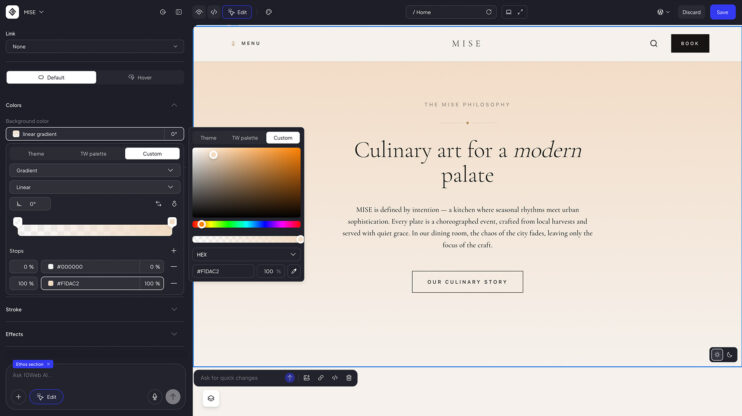
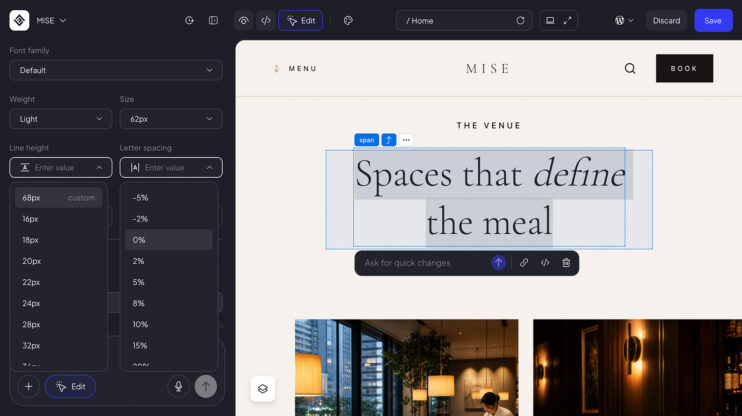
We shipped new settings for more granular control over text editing in the Visual Editor: text case, lists, paragraph and list spacing, and text stroke.
How to use it
- Select a text element in the Visual Editor.
- Open Typography, then More settings.
- Set the text case, turn the block into a bullet list or checklist, adjust paragraph and list spacing, or add a text stroke.
Good to know
- Text case sets any text element to Uppercase, Lowercase, or Capitalize.
- List markers are drawn per line, so they follow the text’s alignment, size, and color.
- Paragraph spacing and list spacing are set in pixels.
- Text stroke outlines the letters themselves, where the stroke control used to draw a box around the whole block.
- More settings stays open until you close it, and opens already expanded on a list element.
- The Visual Editor is part of the AI Website Builder. See plans on the 10Web platform.
This matters most to self builders who style their own pages, since case, lists, spacing, and stroke are now set directly in the Visual Editor.
Share article