Visual editor
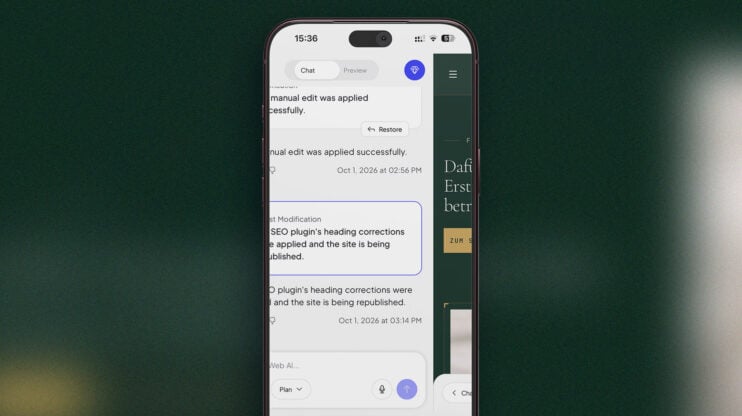
Mobile editor rebuilt: chat and preview on one swipe rail
The mobile editor has been rebuilt. AI chat and the site preview now sit on one swipe rail, so you swipe between talking to the AI and checking the result instead of hunting for a toggle. The rebuild also brings new toolbars, new menus and a new publish sheet. This matters most to builders who edit and publish from a…
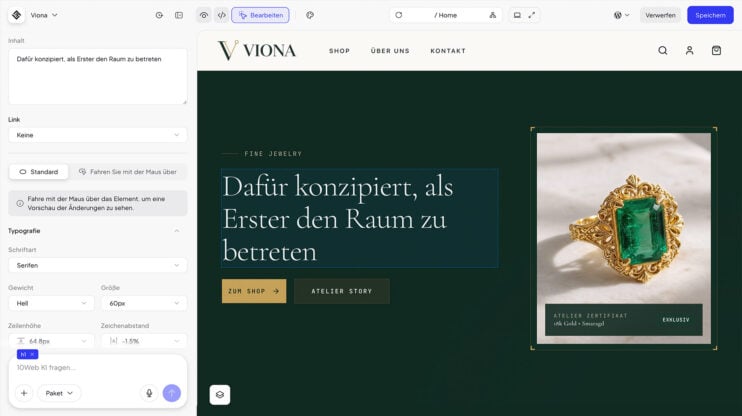
Editor in your site’s language: German, Spanish, French, Italian, and More
The editor now uses your site’s language. If your site is built in German, Spanish, French, Italian, Norwegian, Dutch, Portuguese or Russian, AI chat and the Visual editor show their controls in that language. Anything not yet translated stays in English. This matters most to builders and agencies working in one of these 8 languages who until now edited a…
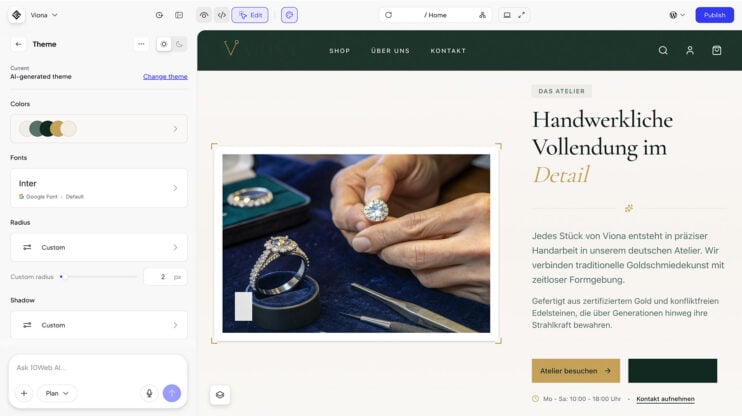
Design themes for cloned and redesigned sites
Design themes now work on cloned and redesigned sites, not only on sites built from scratch. Clone a site or redesign an existing one, then apply a design theme to change its look the same way you would on a fresh build. This matters most to agencies and freelancers who start client projects from an existing site and want the…
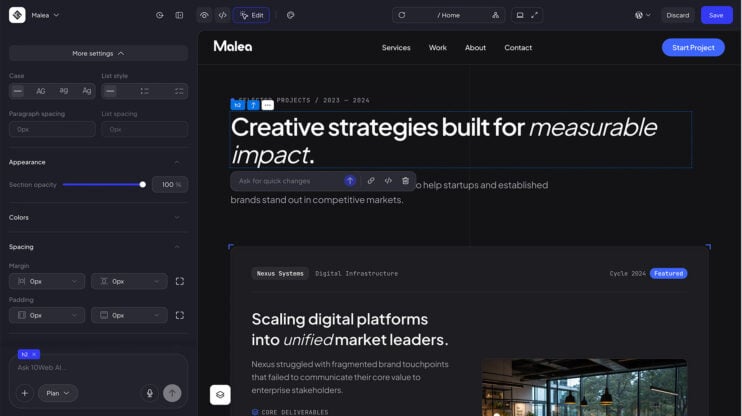
Text formatting in the Visual Editor: case, lists, spacing, and stroke
We shipped new settings for more granular control over text editing in the Visual Editor: text case, lists, paragraph and list spacing, and text stroke. How to use it Select a text element in the Visual Editor. Open Typography, then More settings. Set the text case, turn the block into a bullet list or checklist, adjust paragraph and list spacing,…
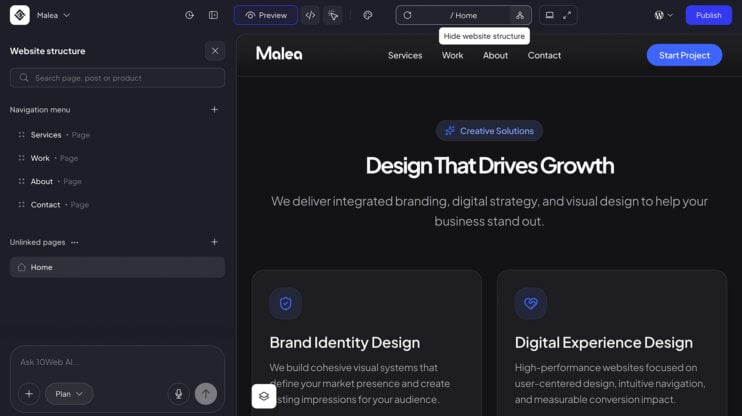
Website structure panel: manage pages, menus, posts and products
The Visual Editor now has a website structure panel: a side panel that shows the whole site at a glance, with the navigation menu, unlinked pages, posts, products and categories in one place. How to use it Open the structure panel from the structure icon, or from “Manage pages” in the address bar. Build the menu without leaving the editor:…
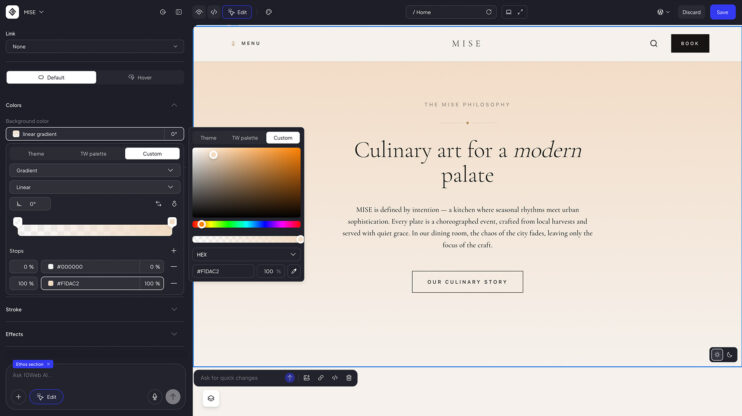
Gradient color editing in the visual editor
You can now edit gradient colors directly in the visual editor. What changed Gradient color editing was added to the visual editor, alongside the existing color and typography controls. A gradient is one of the fastest ways to make a hero section or a call to action feel deliberate, and now it is a few clicks in the visual editor….
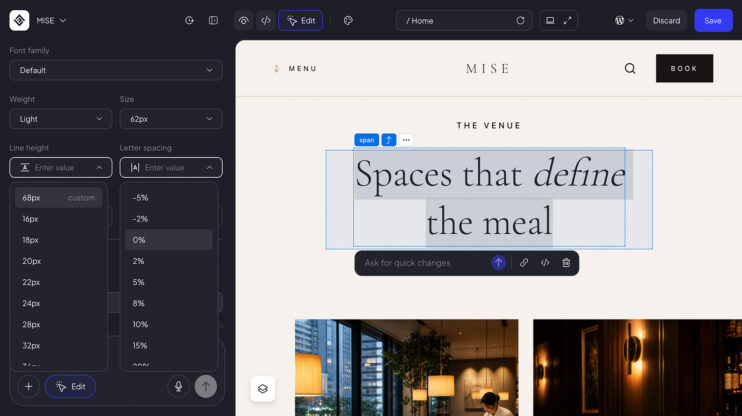
Advanced typography controls: letter spacing and line height
The visual editor now has advanced typography controls, including letter spacing and line height. What changed Letter spacing and line height joined the typography controls in the visual editor. Tighten a headline that reads too loose, open up a paragraph that reads too cramped, and see the result while you work.
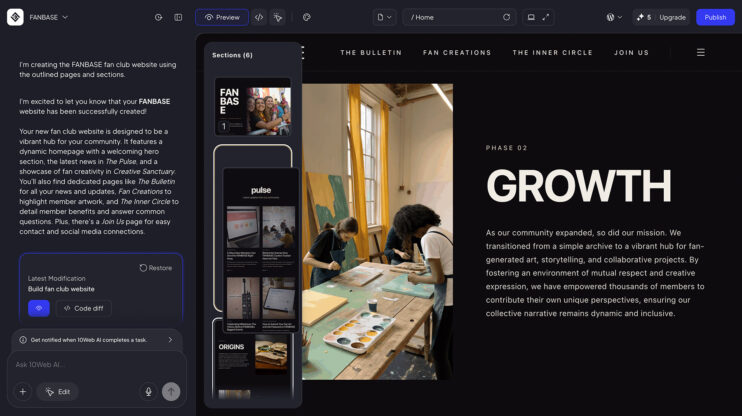
Drag a section. Drop it. Done
Restructuring a page no longer needs a prompt. A new miniature sections sidebar in Visual Editor shows your whole page at a glance. Grab any section, drag it into a new position, and the page updates live. And it works across your whole site: move a section to a different page, or duplicate it and send the copy to another…
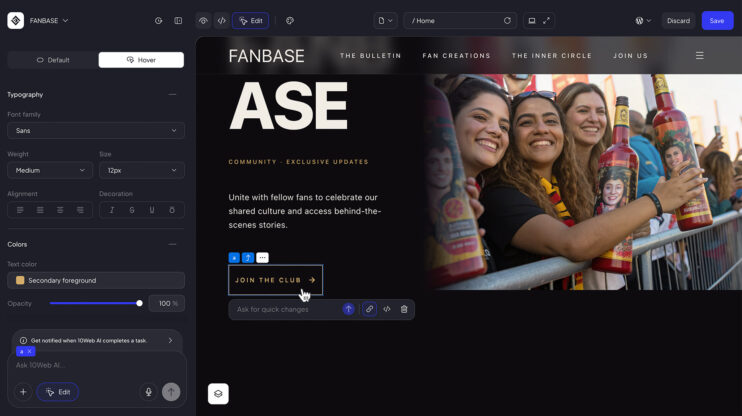
Hover states: add interactive effects to any element
Interactive sites react when you point at them. Now you can set that behavior yourself in the 10Web AI Website Builder. Pick an element, define its default look and its hover look, and the editor switches between them on hover. It works per element and lives in the same sidebar as the rest of your styling controls. This matters most…
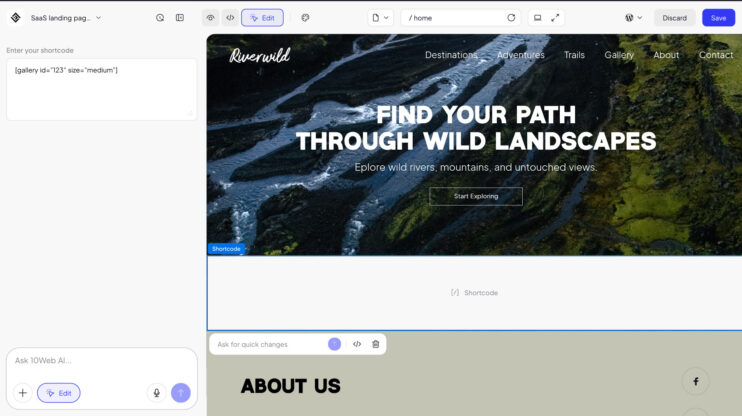
WordPress shortcodes: add any shortcode to your site
Shortcodes are how WordPress adds pre-made sections with some functionality: forms, galleries, pricing tables, booking widgets, and thousands more from plugins. Now you can add them directly inside the 10Web editor. Type a shortcode into the chat, or open the sidebar and use the Add Shortcode button. In the preview, every shortcode renders as its own block. This matters most…
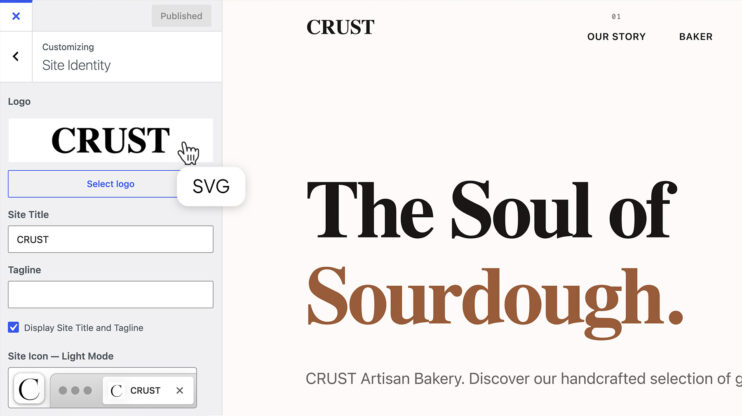
SVG logos, integrated with WordPress Site Identity
Every generated site — regardless of business category — now gets an SVG typography logo. No more pixelated raster logos that break on retina screens or clash with dark backgrounds. Why SVG matters here: Logos adapt automatically to dark/light modes (SVG only). They’re editable like any other element — in chat editing and the Visual Editor alike. Prefer a raster…
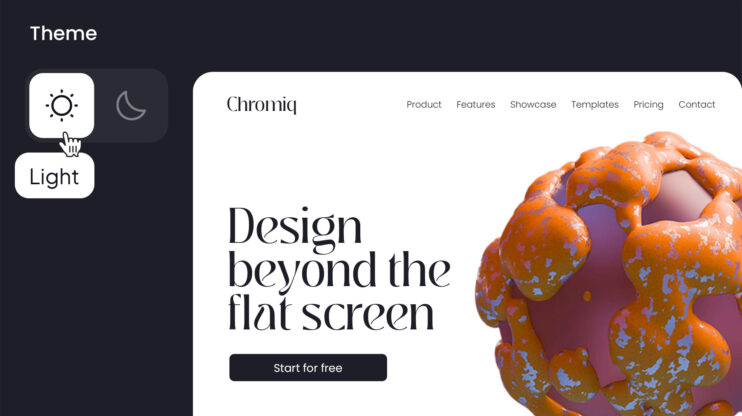
Dark and light modes, native on every site
Every site built with the AI Website Builder now supports built-in dark/light switching — no custom CSS, no paid plugins. Two levels of control: Site-wide switcher in the upper-right corner of the editor instantly toggles the entire site between dark and light. Per-section switcher appears when you hover a section — mix dark and light sections on the same page….
