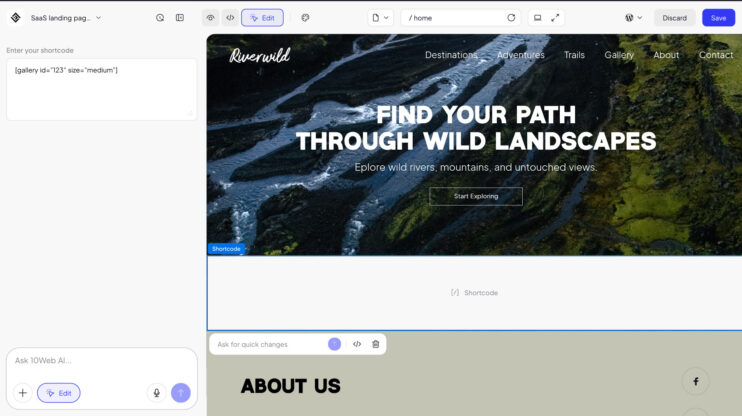
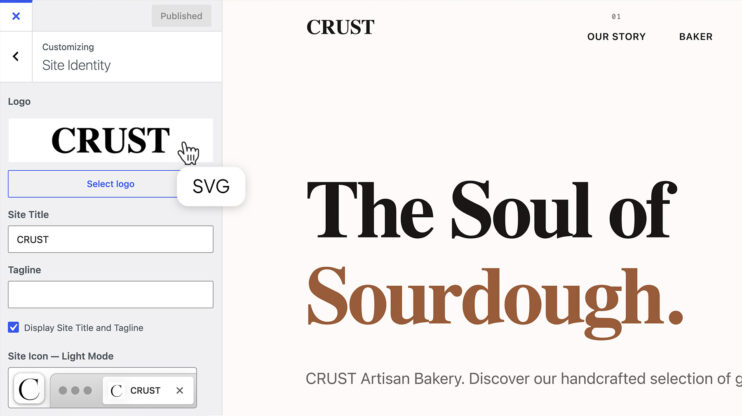
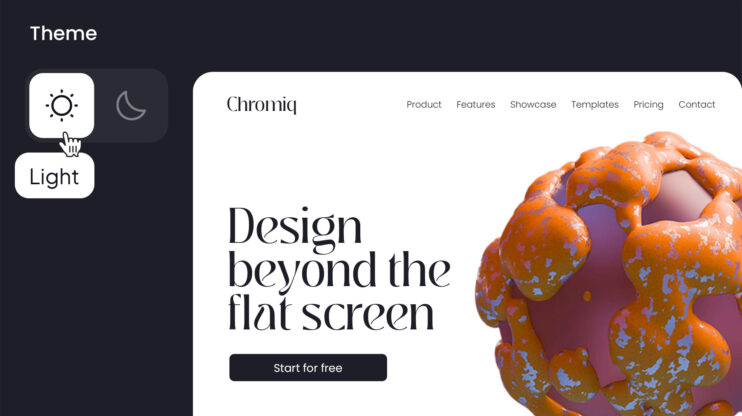
Interactive sites react when you point at them. Now you can set that behavior yourself in the 10Web AI Website Builder. Pick an element, define its default look and its hover look, and the editor switches between them on hover. It works per element and lives in the same sidebar as the rest of your styling controls.
This matters most to builders who want polished micro-interactions without hand-writing CSS.
This is part of the ongoing Visual Editor rollout, which keeps adding fine-grained design control on top of AI generation. The visual editor is included on every 10Web plan.
How to use it
- Select an element in the editor.
- Open the sidebar and set its default appearance.
- Switch to the hover state and set how it should look when a visitor points at it.
Good to know
- Hover states are configured per element, so you control exactly what reacts.
- Fully integrated with the sidebar parameter system, alongside typography, color, opacity, and image controls.
Share article