You found a site that looks like what you want to create. The structure and composition is just the way you’ve been imagining yours to be. So you decide to clone it and use it as a base. Ten minutes later you’re reading about FTP transfers, database exports, and a file called wp-config.php. Twenty minutes later you’ve closed 11 tabs, opened a Reddit thread from 2019, and you’re still lost.
That’s the standard experience. This guide skips all of it.
10Web’s agentic builder lets you paste a URL and walk away with a fully editable clone in under five minutes. This guide covers that approach: using 10Web’s agentic builder to clone any publicly accessible website from a single URL, in minutes, without touching a database or a config file.
What does it mean to clone a website?
Cloning a website creates a structural copy of an existing site, its layout, design system, and page hierarchy, that you then customize with your own content and branding.
It’s commonly used for three things:
- Rebuilding a site you admire as a starting point for your own
- Migrating a non-WordPress site into a WordPress environment
- Creating a staging version of a live site before making changes
Cloning a site’s structure is standard practice in web design. Copying someone else’s written content, photography, or brand assets and publishing them as your own is a different matter entirely, and it’s addressed directly in the next section.
Is cloning a website legal?
Cloning a website’s layout is legal when used for inspiration and not a pixel by pixel copy. Structural design patterns and page layouts are not protected by copyright law.
What is protected:
- Written copy
- Photography
- Logos
- Trademarked brand assets
Copyright protects the way someone has expressed an idea.
Before any cloned site goes live, every piece of original content from the source must be replaced with your own. Think of the design as a reference point. The content must be entirely yours.
This distinction also applies to search engines. Publishing cloned copy as-is, even temporarily, risks duplicate content issues with Google. Customize first, then publish.
Why traditional cloning methods fail
Most cloning failures trace back to the same handful of problems.
WordPress stores URLs as absolute paths inside its database. When you move a site, those paths break, producing 404 errors across internal links, widget settings, and plugin configurations.
Separately, a mismatch between the cloned database credentials and the new server causes a white screen of death before the site even loads. Plugin and theme compatibility failures compound this: clones frequently lose their active theme or plugins mid-restoration, requiring manual intervention in the WordPress dashboard.
JavaScript-heavy sites introduce a different problem. Tools like HTTrack or Duplicator produce a static shell. This means, the visual structure of a page, stripped of the dynamic functionality that made it work. The result looks broken, well, because it is.
10Web approaches the problem differently. Its agentic builder deploys the same coordinated AI agents to detect and reconstruct the site’s structure directly from the source URL without copying any of the original code. There are no files to transfer, no database to configure, and no server credentials to enter. The table below shows where the two approaches diverge:
The table below shows how common failure points compare:
| Problem | Traditional method | 10Web Agentic Platform |
| Broken internal links | Manual database search-and-replace | Handled automatically |
| Database credential errors | Edit wp-config.php manually | No database configuration required |
| Plugin/theme failures | Debug restoration manually | No file transfer or restoration |
| JavaScript-heavy sites | Incomplete static clone | AI reconstructs structure from the URL |
| Setup complexity | FTP, phpMyAdmin, multiple plugins | Single URL input |
How to clone any website with 10Web
The process starts from the 10Web homepage. You do not need an account before you begin, sign-up happens partway through the flow, after you’ve already submitted the URL.
Step 1: Go to 10Web and click Clone site from URL
Navigate to 10web.io. On the homepage, hover over the “+” button in the prompt area at the bottom of the page. A dropdown appears with four options:
- Clone site from URL
- Redesign site from URL
- Take a screenshot
- Attach a media
Select Clone site from URL, paste the full URL of the site you want to clone, and click Generate.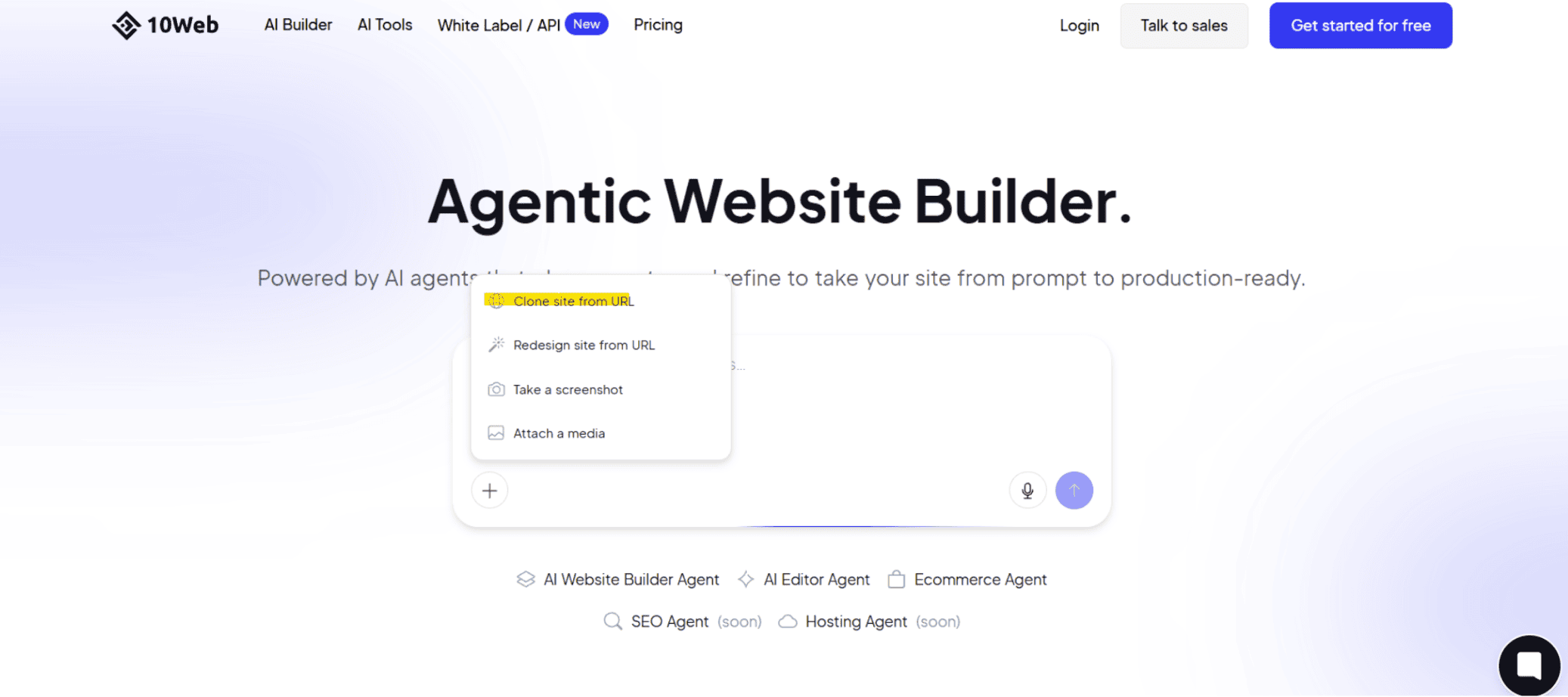
Step 2: Create your free account or log in
After clicking Generate, a sign-up modal appears. You will need to create a free account to generate and customize your website. You can sign up with Google in one click, or enter your email, name, and password. If you already have a 10Web account, log in here instead. The free trial runs for 3 days and requires no credit card.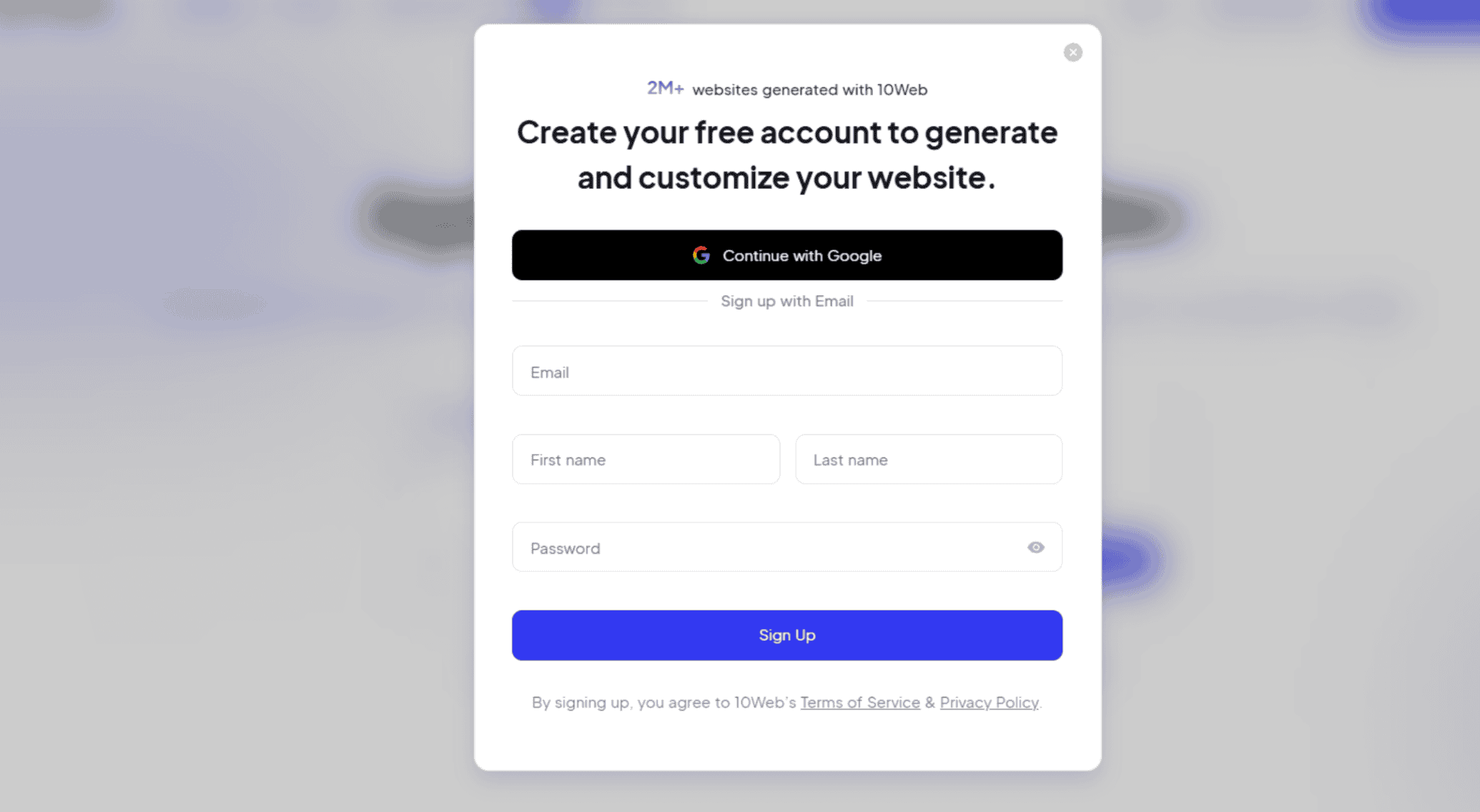
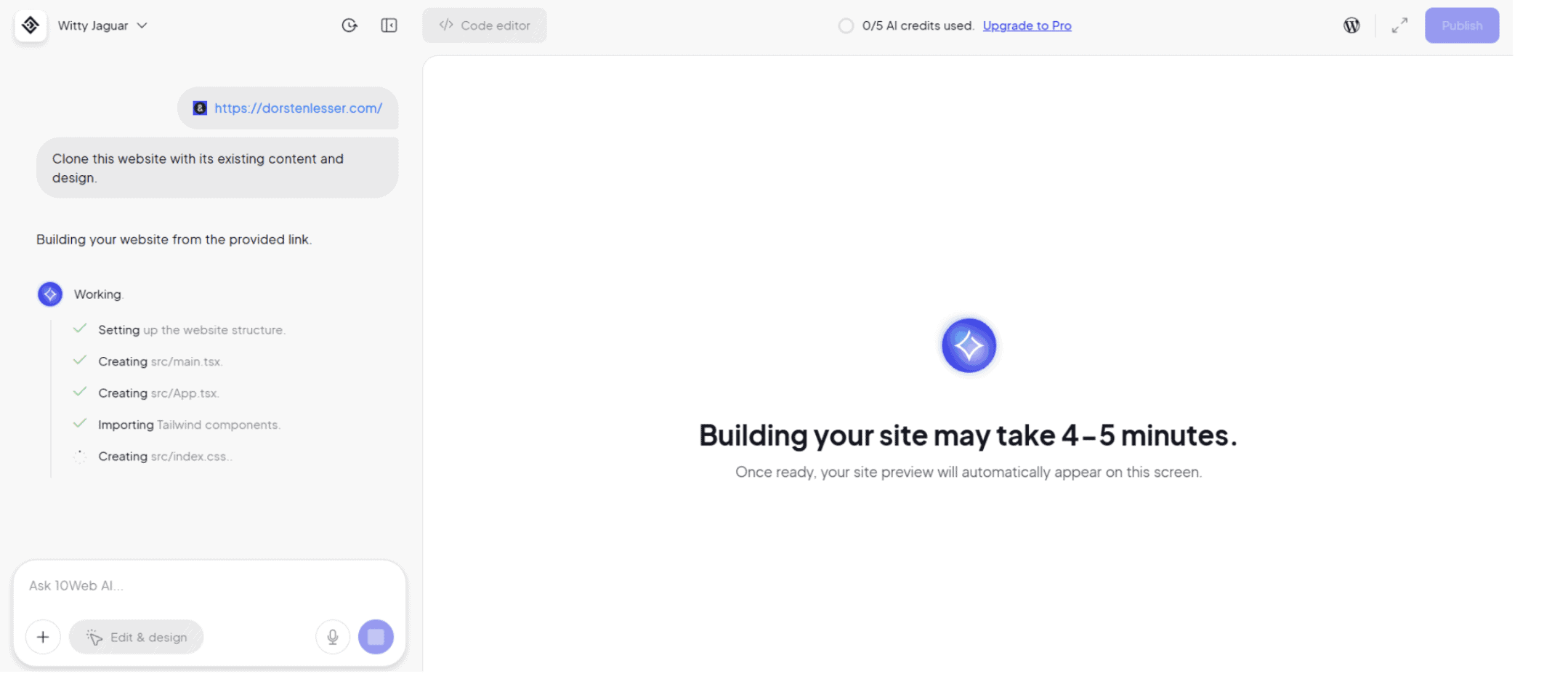
Step 3: The cloning starts automatically
Once authenticated, the process begins immediately, no additional configuration required. The interface switches to 10Web’s AI builder: a split screen with the AI chat panel on the left and a live preview area on the right.
The left panel logs the build as the agents work through it.
Nothing else is needed at this stage. 10Web’s agents handle structure, code generation, and content extraction from the source URL.
Step 4: Review your cloned site
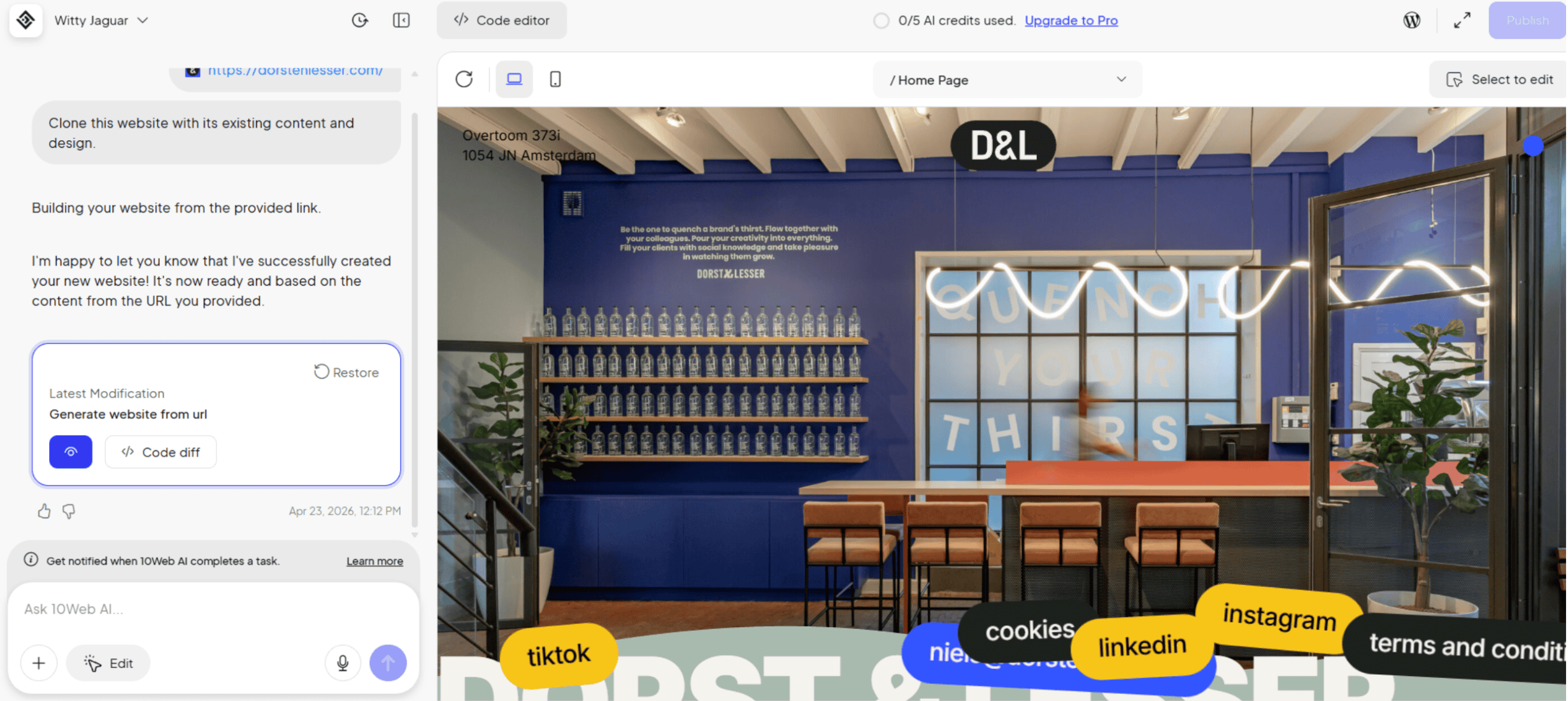
When the build finishes, the AI confirms: “Your website has been successfully created. It’s now ready for you to explore.” The cloned site appears in the right panel. Two action buttons appear in the chat:
- Preview: Opens a full-page view of the cloned output
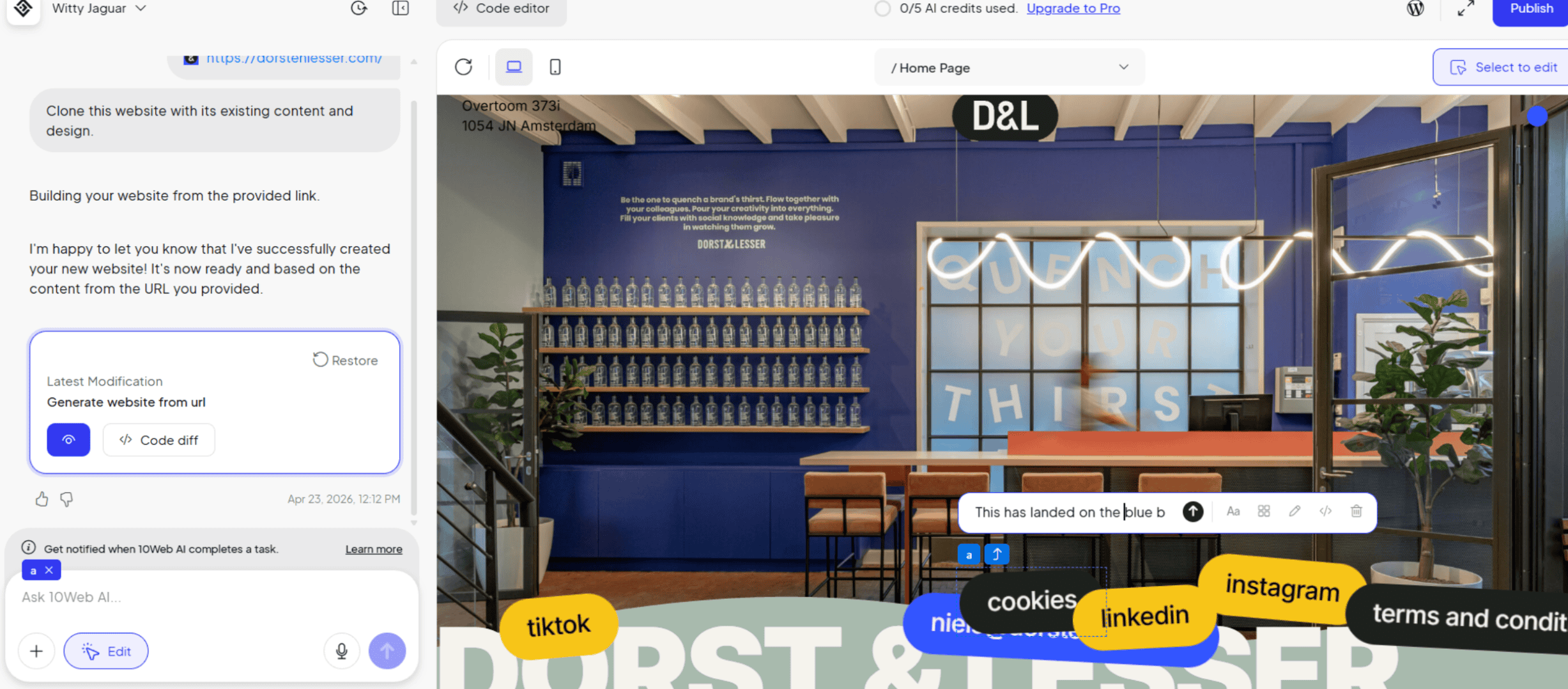
- Code diff: Lists all generated files for developers who want to inspect what was built before making any edits
Step 5: Edit visually
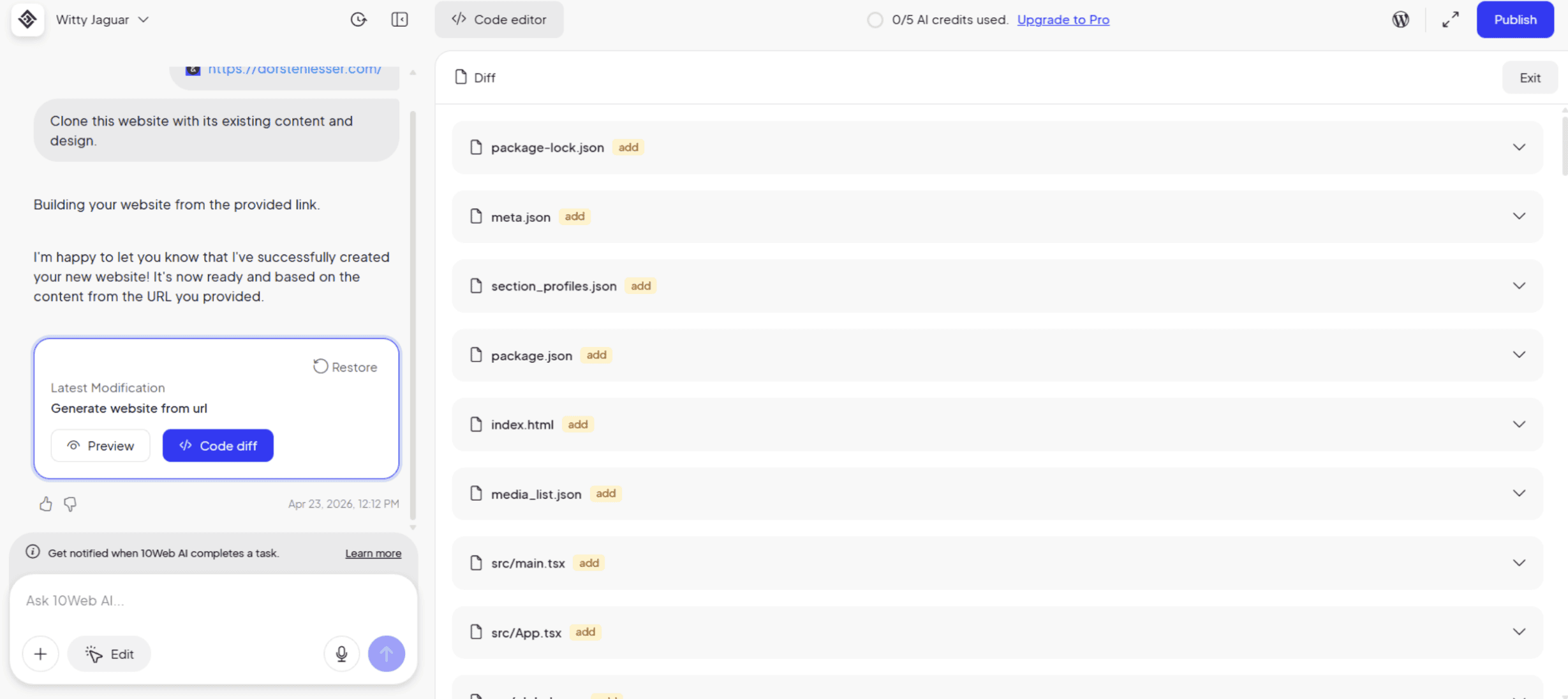
The visual editor uses a chat-based AI interface. You select the element you want to change, describe how you want to change it, and the WordPress vibe coder executes it.
- Click Select to edit in the top-right corner of the preview panel to enter visual editing mode.
- Click any element on the page.
A floating toolbar appears with control over that specific element.
- Use the AI chat on the left to instruct changes in plain language — for example: “Move the cookies button to the left.”
The AI executes the change, logs its action steps, and confirms the result.
All modifications are tracked in a Latest Modification card in the chat panel. Click Restore at any time to undo. Edits can also be made through the Content, Layout, Style, or Code tabs in the floating toolbar for more precise control.
Step 6: Edit with code (optional)
Click Code editor at the top left of the interface to open a full development environment. A file tree appears on the left with direct file editing on the right. This is 10Web’s WordPress code editing built into the builder. Non-developers can skip this step entirely.
Step 7: Access project settings and navigation
Hover over the 10Web logo in the top-left corner to reveal a settings menu. From here you can:
- Navigate to the dashboard
- Regenerate the site
- Access Appearance and Notification settings
- Manage Project settings
- Explore White label and API solutions.
The menu also displays your AI credits. Each AI request costs one credit. The free trial includes five.
What to do after cloning a website
Complete this checklist before connecting a domain or publishing:
- Replace all cloned text with your original copy
- Swap all images for your own brand-owned or licensed visuals
- Update the logo, colors, and typography to match your brand
- Review and update the navigation menu and page titles
- Confirm no original site branding remains anywhere on the page
- Run a mobile check. 10Web’s output is responsive across all devices
Once the checklist is done, connect your custom domain from the 10Web dashboard and click Publish. 10Web handles SSL, CDN through Cloudflare Enterprise, caching, and performance optimization automatically. Sites launch targeting a 90+ PageSpeed score out of the box.
Managing multiple sites? 10Web migrates up to 200 at once
Cloning works well for one site at a time. If you’re managing a portfolio of existing WordPress websites and need to move them all to 10Web, the migration tool handles up to 200 sites in a single operation — preserving files, databases, plugins, and settings without manual intervention. [See the full guide to migrating WordPress websites with 10Web]
Conclusion
Getting a site live shouldn’t require a database export, a config file edit, and two hours of troubleshooting broken links. The process above takes those steps off the table entirely. You paste a URL, create an account, wait five minutes, and you’re editing a working clone.
The design reference is there. The WordPress infrastructure is live. What you put into it — the copy, the branding, the content is what makes it yours. Start with the checklist, replace everything that isn’t, and publish when it’s ready.
If you’re ready to try it, get started free at 10web.io, no credit card required.
FAQ
Can I clone any website with 10Web, including non-WordPress sites?
Yes. You can clone any publicly accessible URL, regardless of what platform the original site is built on. 10Web recreates the design and structure as an editable site.
Will cloning a website affect my SEO?
Not if you replace all cloned content with original copy before publishing. Cloned copy published as-is can trigger duplicate content issues with Google, not to mention infringement on someone else’s property. Always customize before going live.
How long does the cloning process take?
Typically 4–5 minutes from the moment you submit the URL.
Is 10Web's cloning feature free?
10Web offers a 3-day free trial that includes the cloning feature. The trial includes 5 AI credits. Each action uses one credit. Paid plans unlock full access — see current pricing at 10web.io/pricing-platform.
What if the cloned site doesn't look exactly right?
Sites with heavy JavaScript animations or server-side dynamic rendering may produce a less precise structural clone. Use the visual editor or code editor within the builder to refine the output after generation.